
You open the lid and press the power button. The fan spins, the keyboard lights up, but nothing appears on the screen. This scenario regularly affects Asus laptops across all product ranges. Before concluding that the display panel is broken or ordering a replacement part, you need to work through a methodical diagnosis. Most black-screen issues on Asus laptops have fixes that don’t require opening the machine, provided you follow the right steps in the right order.
External display: the first test to distinguish between two different faults
When the screen stays black even though the laptop seems to start up, the first step is to connect an external monitor via HDMI or USB-C. This simple test tells you whether the laptop is producing an image.
If the external display shows the Windows desktop or the Asus logo at startup, the problem lies with the display panel or its internal connection (cable, backlight, connector). If the external display also stays black, the issue is more serious: the graphics card, motherboard, or an interrupted startup sequence.
This distinction makes all the difference. In the first case, the data on the drive is intact and accessible. In the second, it’s not yet clear whether the operating system is starting up. For a closer look at each branch of this diagnostic process, see this detailed guide to Asus laptops with a black screen.

Resetting the embedded controller on an Asus laptop
A simple restart isn’t always enough. The embedded controller (EC) manages power, battery charging, and the startup sequence. If it freezes, the laptop may appear to be on without ever sending a video signal.
Resetting the EC is different from a standard restart. It usually involves unplugging the power adapter, removing the battery if it’s removable, then holding down the power button for about 15 seconds to discharge the capacitors.
Check the procedure for your model
Asus has different versions of this procedure for different product lines. On some models with built-in batteries, the key combination is different. Following instructions for a VivoBook on a ROG Strix may do nothing—or even cause unexpected behavior.
The Asus support page for your exact model number (printed on the underside of the laptop or shown in the BIOS, if you can access it) is the most reliable source. Always check the procedure for your specific model before trying anything.
Display failure or startup problem: protect your data before taking action
You’ll often see advice to reinstall Windows, flash the BIOS, or reset the system after just a few initial checks. These steps carry a real risk of data loss if the drive contains files that haven’t been backed up.
Before attempting any major software intervention, check these three things:
- Does the laptop beep or show LED signals at startup? On many Asus models, an LED code (a sequence of flashes) indicates the type of fault without requiring any changes to the system.
- Is the hard drive or SSD detected in the BIOS? If you can access the BIOS (press F2 or Delete, depending on the product line), check that the storage drive appears in the device list to confirm that your data is still accessible.
- Does an external display show anything? If so, you can use the laptop normally with that monitor and back up your files before trying anything risky.
If none of these checks produces a result, it’s better to stop than to keep trying random fixes. Each uncontrolled attempt increases the risk of corrupting the file system or rendering the BIOS unusable.
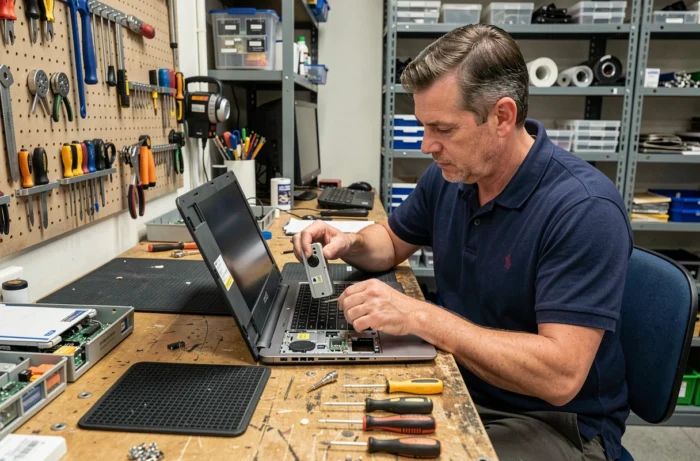
When to have an Asus-authorized repair center diagnose the problem
You can reasonably try the external display test, reset the EC, and access the BIOS yourself. These three steps don’t change anything on the drive and don’t require opening the laptop.
Beyond that, diagnosis requires specialized tools and expertise. Here are some situations where continuing on your own becomes counterproductive:
- The external display stays black and no LED code appears: the fault is probably with the motherboard or graphics circuit.
- The BIOS doesn’t appear on any display: the firmware may be corrupted, and an incorrectly performed BIOS recovery can render the motherboard unusable.
- The laptop gets unusually hot without displaying anything: an internal component may be short-circuiting, and the problem can worsen every time the laptop is powered on.
- The laptop was dropped or exposed to liquid before the screen went black: internal damage may not be visible and requires a physical inspection.
An online price isn’t a repair quote
Asus France states that parts prices listed online are indicative. The final cost is confirmed only after an authorized repair center has inspected the laptop. Concluding that a black screen means the display panel needs replacing at a specific price amounts to diagnosing the problem without an inspection. The issue could be a simple disconnected cable or a faulty GPU—two repairs with very different costs.
Three habits to help prevent the problem from recurring
Once the issue is resolved, a few simple habits can reduce the risk of seeing that black screen again.
Update your graphics drivers and BIOS from the Asus website (not a third-party site) to fix known bugs that can cause the display to shut off. Updates to the embedded controller, when available, can also improve power management stability.
Avoid forcing the laptop to shut down by holding the power button, except as a last resort, to reduce the risk of corrupting the EC firmware. On newer models, closing the lid and using hibernate is safer than abruptly cutting power.
Finally, regularly backing up your files to an external drive or the cloud turns a black screen into a minor hardware inconvenience rather than a data disaster. Troubleshooting is less stressful when you know nothing important depends on a display that won’t turn on.