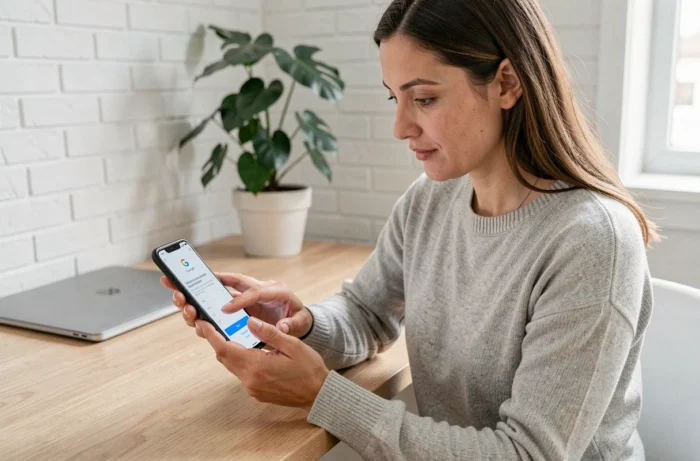
A Google account linked to an Android device is essential for accessing the Play Store, syncing data, and operating most Google services. The process itself is straightforward, but several technical parameters determine whether the association actually works: Play Protect certification, authentication method, and device visibility within the Google ecosystem. These are the points that deserve special attention.
Play Protect Certification and Android Device Compatibility
An uncertified Android device may deny access to the Play Store or not appear in the list of devices associated with the account. This certification confirms that the manufacturer has obtained a Google license to pre-load Play services.
To check the certification status, open the Google Play Store app, tap on the profile icon in the top right corner, then go to Settings and tap on About. If the mention Play Protect certification does not appear, the device is running an unverified ROM or comes from a manufacturer without a Google license.
On an uncertified device, the account addition process sometimes completes without any visible errors, but remote installation from the Google Play site fails. The device simply does not appear in the dropdown list. Before looking for an account issue, we recommend checking this point as a priority.
When you need to associate a device with a Google account on a recently acquired phone, this check saves time on steps that will not succeed.
Two-Step Verification and Authentication Methods on New Device
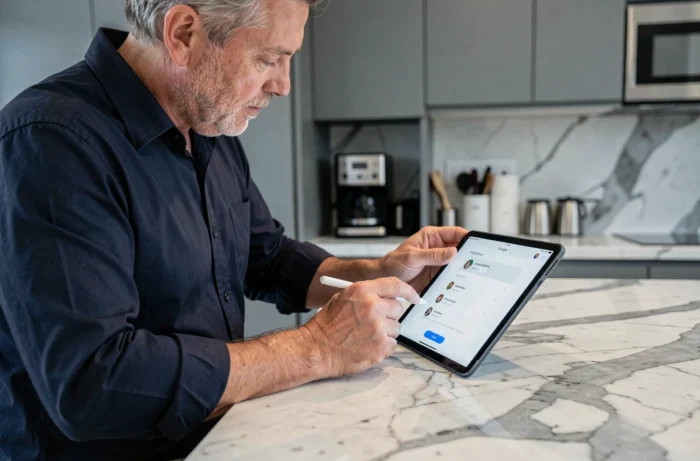
Two-step verification protects the account, but it becomes an obstacle if the trusted phone is no longer available when setting up a new device. Google offers several backup methods that must be configured before getting stuck.
Available Verification Methods
- Google prompts sent to a device already connected to the account, requiring a simple confirmation by tapping
- Authentication apps (Google Authenticator or equivalent) that generate temporary codes independent of the mobile network
- One-time backup codes, downloadable from the account’s security settings and kept offline
- Access keys (passkeys), which allow authentication via biometric lock or device PIN, without entering a password
The classic trap: relying solely on one device for verification. If this phone is lost, stolen, or reset, accessing the account becomes very complicated. Setting up at least two different methods remains the only reliable precaution.
Access Keys and Passwordless Login
An access key (passkey) replaces password entry during certain logins. It relies on the device’s lock, such as a fingerprint or code. Management is done in the Google account’s security settings, under “Signing in to Google.”
On a new Android device, if a passkey is already registered on another device of the same account, Google may offer to use it via Bluetooth to validate the connection. This process avoids typing a password on a virtual keyboard, reducing the risk of interception.
Managing Multiple Google Accounts on the Same Smartphone
Adding a second Google account on an Android device is done through Settings, then Accounts, then Add Account, then Google. Each added account provides access to its own Gmail, Drive, Photos, and Play Store data.
The often-overlooked technical point concerns the active account in each application. The Play Store, Gmail, and YouTube manage the selected account independently. Installing an app from the Play Store with account A does not automatically link it to account B, even if both are present on the device.
To switch accounts in the Play Store, tap the profile icon in the top right corner and select the desired account. The same action applies in Gmail, YouTube, or Google Maps, but the selection does not synchronize between applications.

Remote Installation from the Google Play Site
The site play.google.com allows you to trigger the installation of an app on a device remotely. For this to work, three conditions must be met simultaneously:
- The account selected on the site must be the same as the one active in the Play Store on the target device
- The device must be Play Protect certified and connected to the Internet
- The device visibility must be enabled in the account preferences (a hidden device does not appear in the dropdown list on the site)
To check or modify visibility, go to play.google.com/settings and check the devices on which remote installations are allowed.
Google Account Security: Monitoring Connected Devices
Once multiple devices are associated with the same account, monitoring the list of active connections becomes a necessary habit. Google keeps a history of connected devices, accessible from the account’s security settings, under “Your devices.”
This page displays each device with its last activity. If an unknown device appears, the account has likely been compromised. Google allows you to remotely sign out of a specific device from this same page.
Removing a device from the list does not remove the account from the device. The operation only revokes the active session. On the physical device, the account remains configured as long as it is not manually removed via Settings, then Accounts.
After changing phones, removing the old device from the active list and changing the account password if the old phone is sold or recycled remains the safest procedure. Coupling this action with verifying two-step verification methods ensures that the old device can no longer serve as an entry point.